
RF Explorer Pro GPS
GPS is only available on the RF Explorer Pro device.
Overview
The GPS panel lets you enable GPS and view live location data such as latitude, longitude, satellite count, and UTC time. It also includes a GPS Diagnostic tool to check fix quality and positioning details.
The status text at the top (for example, GPS OFF, GPS Unavailable, or GPS Data) and the icon on the right give you a quick view of the current GPS state.
Before you begin
- Device requirement: GPS is only available on the RF Explorer Pro device.
- For best results, use GPS where the antenna has a clear view of the sky (indoors can prevent a fix).
- GPS received data is updated every 5 seconds
Important
- GPS can take time to acquire a first fix (cold start). If you just enabled it, wait a moment and watch the satellite count.
Notes / Tips
- If the icon stays white, move to a location with better sky visibility and wait for the first fix.
- As Satellites increases, you should see the icon improve from yellow to blue to green.
- UTC time is a good quick indicator that the receiver is actively decoding GPS data.
GPS Data
In the GPS section, you’ll typically see:
- Coordinates (DD): Current position in decimal degrees (Latitude, Longitude). Shows “-” when no valid fix available.
- Latitude: Current latitude (updates when a valid fix is available).
- Longitude: Current longitude (updates when a valid fix is available).
- Satellites: Number of satellites currently used/received for the fix. This value drives the yellow/blue/green icon states.
- Time (UTC): GPS time in UTC.
GPS Diagnostic
The GPS Diagnostic section provides additional information about the current GPS fix and a quick way to test GPS quality.
Fields you may see include:
- Accuracy (m): Estimated positioning accuracy, in meters.
- Altitude (m): Estimated altitude, in meters.
- Systems: The GNSS systems in use (GPS, GLONASS, Galileo, BEIDOU).
- Quality: A summary of fix quality based on the current satellite reception.
- Poor: 1–3 satellites (limited accuracy).
- Good: 4–7 satellites (stable fix).
- Excellent: 8+ satellites (best accuracy).
- Last run (UTC): Timestamp of the last diagnostic run, in UTC.
GPS Antennas
GPS antennas for outdoor reception come in two main types: passive and active. The key difference is whether the antenna includes a built-in low-noise amplifier (LNA) to boost the very weak GPS signal before it travels through the cable.
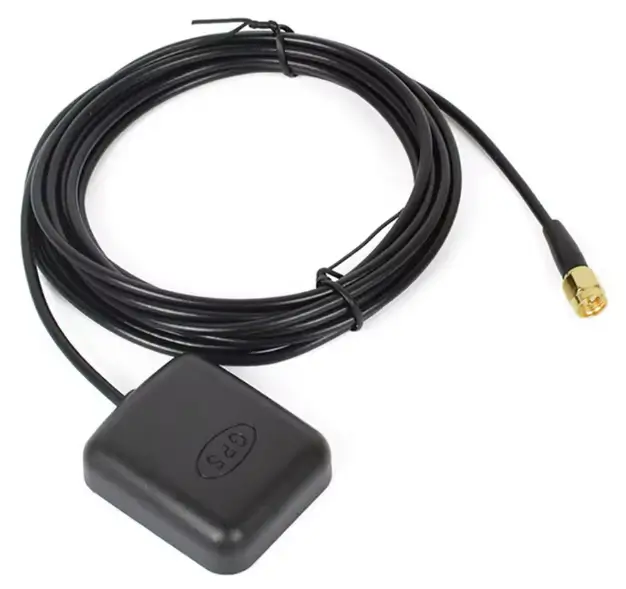
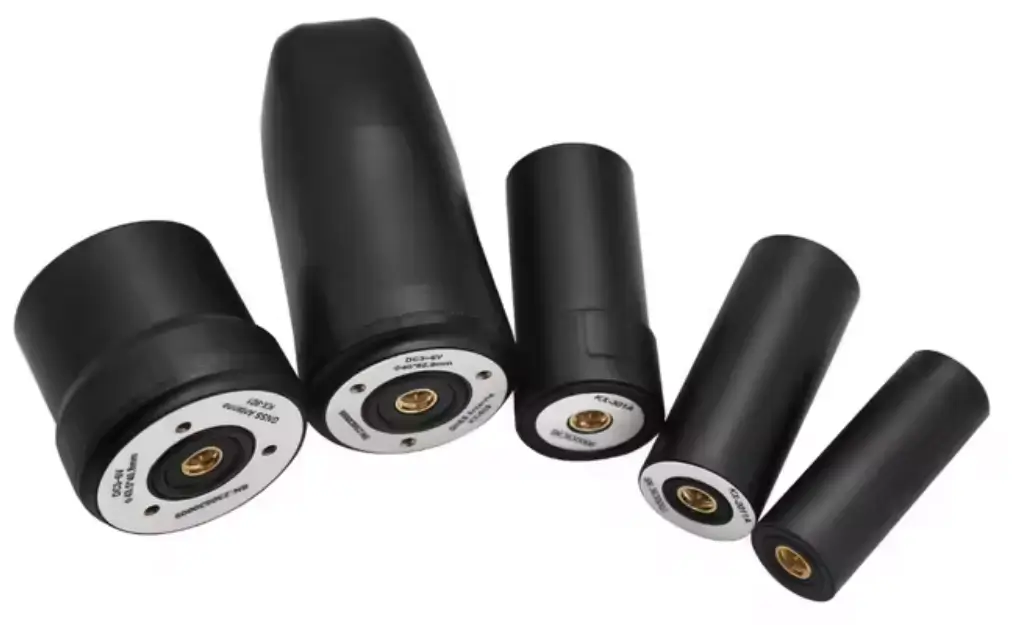
Active GPS antenna
An active antenna includes an LNA right at the antenna. Many active GPS antennas also include a SAW filter (or similar) to reduce out-of-band interference.
Advantages
- Better for long cable runs because the signal is amplified before the cable loss.
- Often improves reliability in real-world environments by:
- Increasing the signal-to-noise ratio (SNR) at the receiver input
- Providing some filtering against interference (depends on model)
- Generally more consistent performance when the installation is not ideal.
Disadvantages
- Requires power (usually supplied by the receiver through the coax).
- More components = more potential failure points (water ingress, connector issues, amplifier failure).
- Can be affected by very strong nearby signals (in some locations) causing amplifier compression/desensitization.
- Slightly higher cost.
Best use outdoors
- Medium/long coax runs.
- Installations near vehicles, buildings, or RF-noisy areas where extra margin helps.
- When you want more “plug-and-play” reliability.
Passive GPS antenna
A passive antenna is just the antenna element (and sometimes a simple matching network). It does not amplify the signal.
Advantages
- No power required (no bias voltage).
- Simple and robust (fewer parts to fail).
- Often cheaper.
- Less risk of amplifier overload from nearby strong RF sources (because there is no active amplifier at the antenna).
Disadvantages
- More sensitive to cable loss (long coax runs reduce signal significantly).
- Usually worse performance when:
- The cable is long
- The receiver’s front-end is not very sensitive
- The antenna is not placed in a “clean” sky-view area
- If you need filtering, it depends on the receiver; the antenna itself usually provides less help against interference.
Best use outdoors
- Short cable runs (typically “close to the receiver”).
- Installations where you can place the antenna with clear sky view and keep coax short.
GPS Icon Status
Color | Description |
|---|---|
 | GPS is turned off. No GPS position data is available. |
 | "No waves" - GPS is turned on, but the receiver does not have a valid fix yet. Coordinates show “-” |
 | "Weak waves" - Poor reception. A fix may be available, but it can be unstable and less accurate. |
 | "Medium waves" - Good reception. Coordinates are typically stable and accurate for normal use |
 | "Strong waves" - Excellent reception. Best stability and accuracy. |
Recommended
Use a standard active GPS antenna with built-in LNA for best accuracy and faster signal acquisition. Multiple options are available on the market — select one compatible with 5VDC operation
Generate GPS Heatmap file
From version v1.25, GPS Heatmap HTML files are supported for Spectrum Analyzer mode.
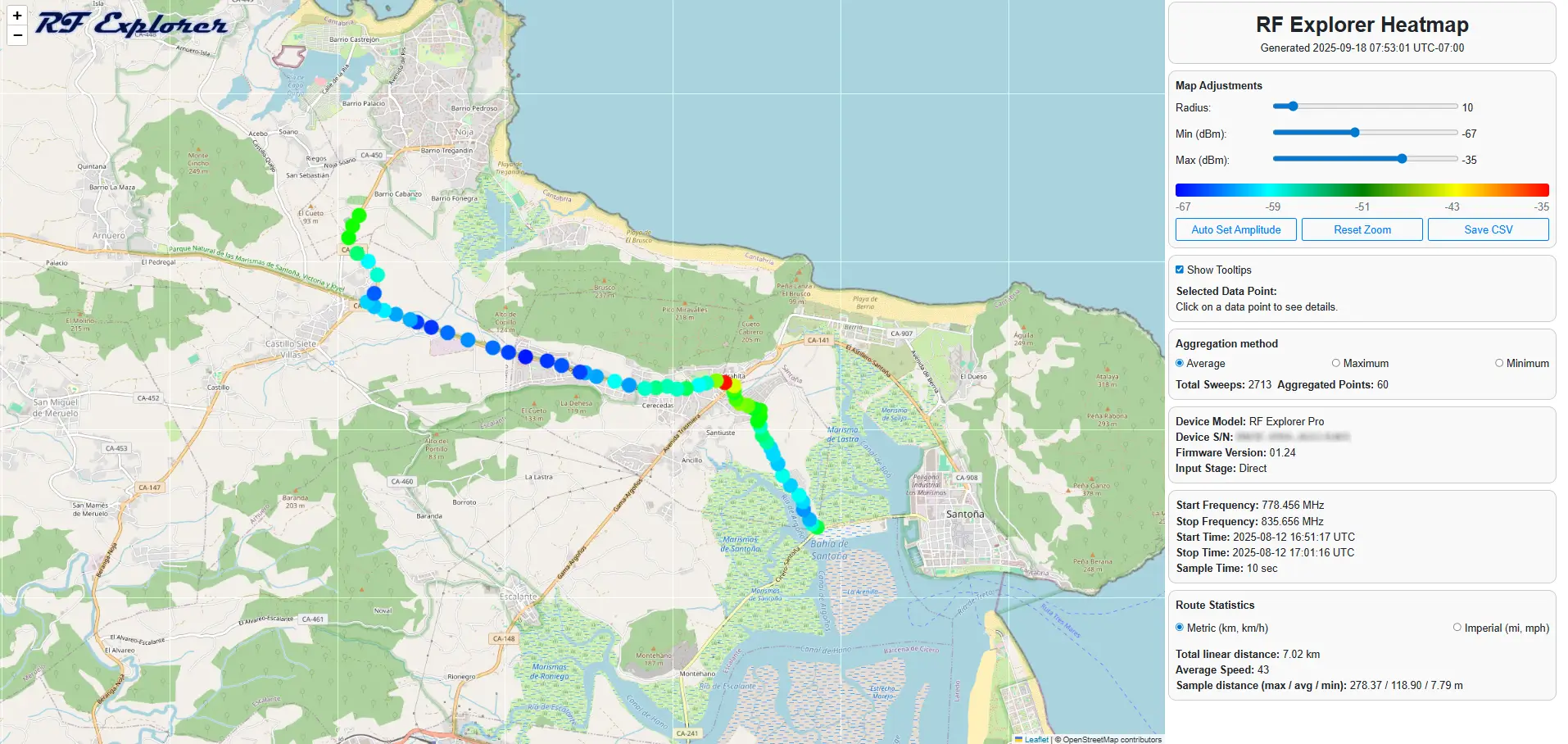
The Heatmap is a visual tool that represents radio frequency (RF) signal strength measurements over time and geographic location. It uses a color gradient (typically from cool colors like blue to warm colors like red) to indicate signal intensity. This allows you to quickly identify areas of strong signal (good coverage) and weak signal (poor coverage or interference).
License RFEPLIC54 Requirement for GPS Heatmap Generation
On first use, up to 10 free demo sessions are available. After that, an additional license is required to generate GPS Heatmap files.
For more details about GPS Heatmap file visit:
GPS Heatmap HTML file
Note
To generate GPS Heatmap HTML files, you must capture sweep activity that includes GPS coordinate data.
Also you can load a .RFE file with captured data preivously and generate Heatmap file.